
Load CSV flow
Step 1: Upload the CSV file
Choose Load CSV, then select your CSV file.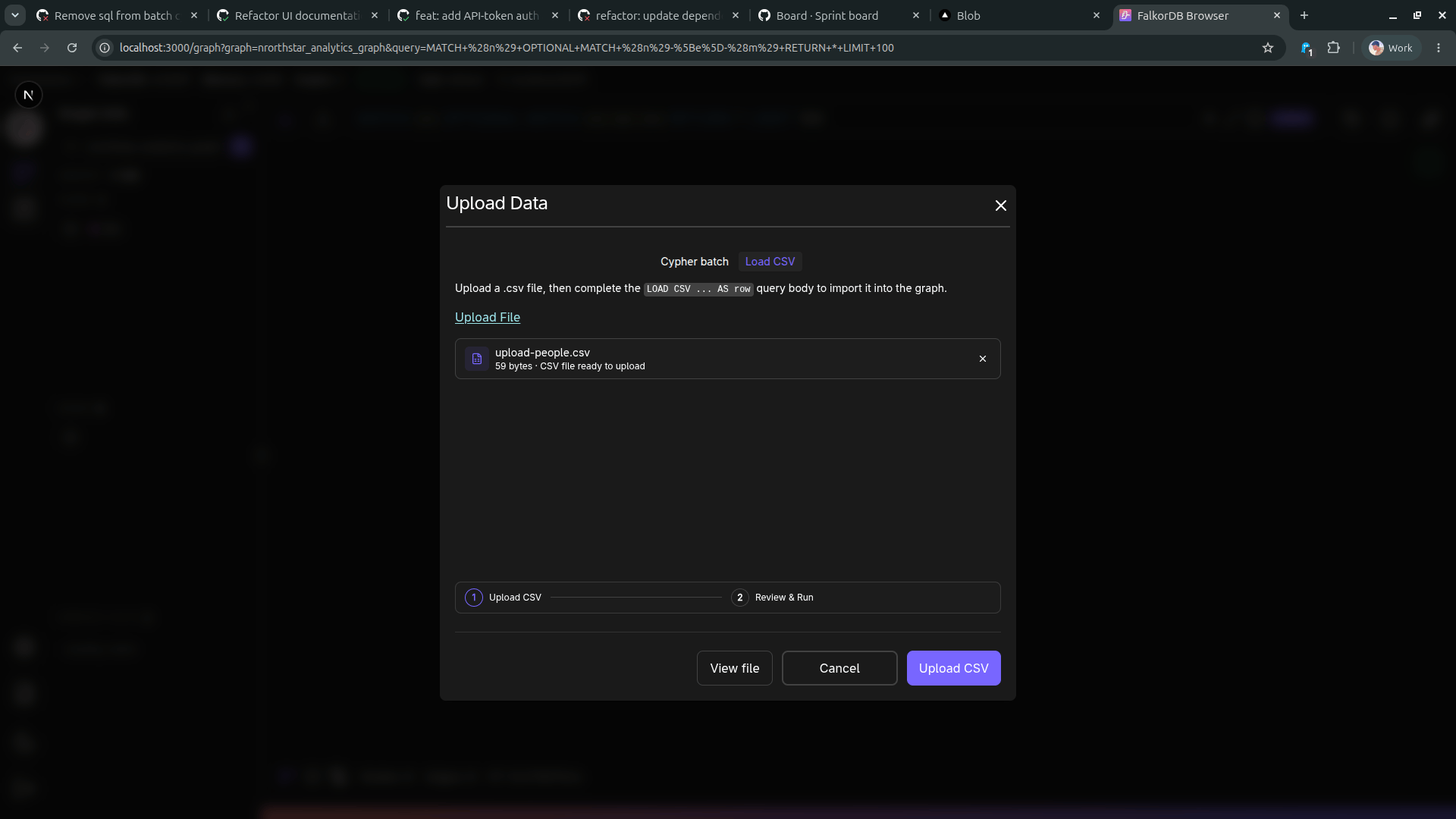
Step 2: Review and run
After upload, review the generatedLOAD CSV query, adjust it if needed, then click RUN.
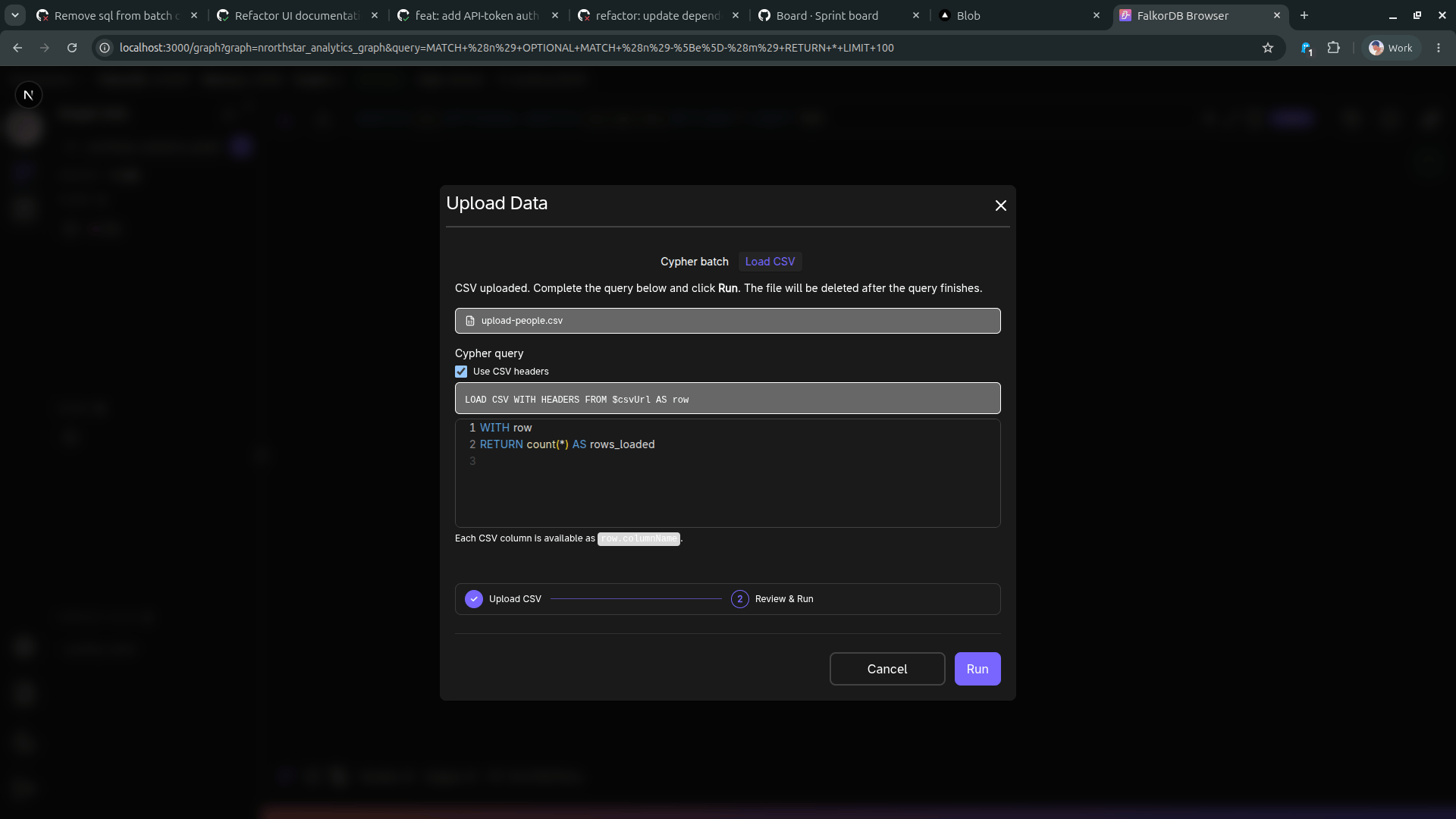
- Use CSV headers can be toggled to map columns by header name.
- Each CSV column is available as
row.columnNamein the query body. - The uploaded CSV file is temporary and removed after query execution finishes.
Cypher batch flow
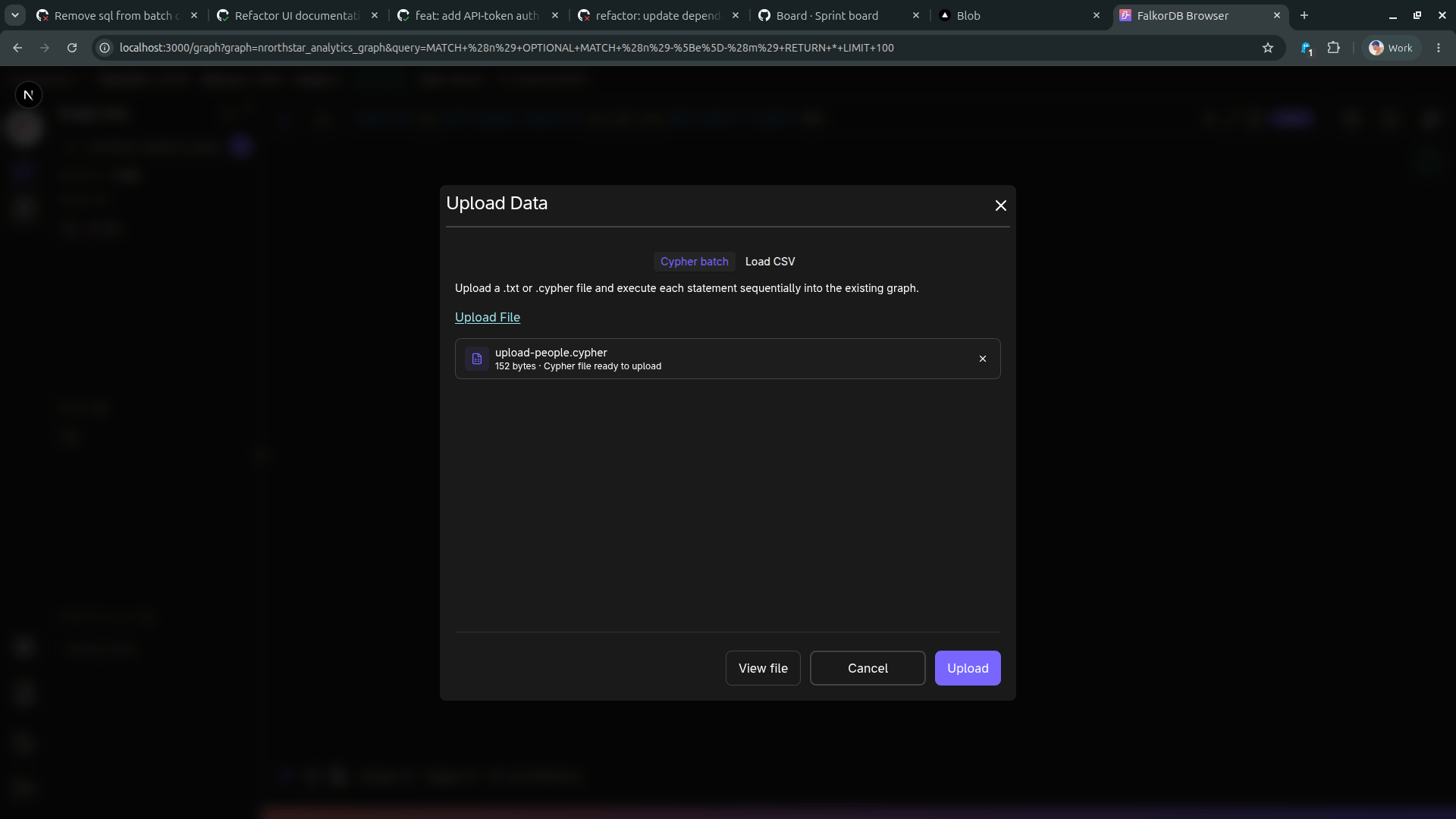
Switch to Cypher batch to upload a.cypher or .txt file containing one or more statements.
When to use each mode
- Load CSV: Use this for tabular source data where you need explicit row-to-graph mapping logic.
- Cypher batch: Use this when you already have graph mutations prepared as Cypher statements.
Frequently Asked Questions
What file types can I use in Upload Data?
What file types can I use in Upload Data?
Use
.csv with Load CSV, or .cypher / .txt with Cypher batch.Does Upload Data run on the selected graph only?
Does Upload Data run on the selected graph only?
Yes. The import runs against the currently selected graph in the Graph page.
Can I edit the generated LOAD CSV query before running?
Can I edit the generated LOAD CSV query before running?
Yes. After uploading a CSV, review and edit the query in step 2 before clicking Run.
What is the difference between Load CSV and Cypher batch?
What is the difference between Load CSV and Cypher batch?
Load CSV uploads tabular data and builds a query around
LOAD CSV. Cypher batch executes statements from an uploaded script file sequentially.