
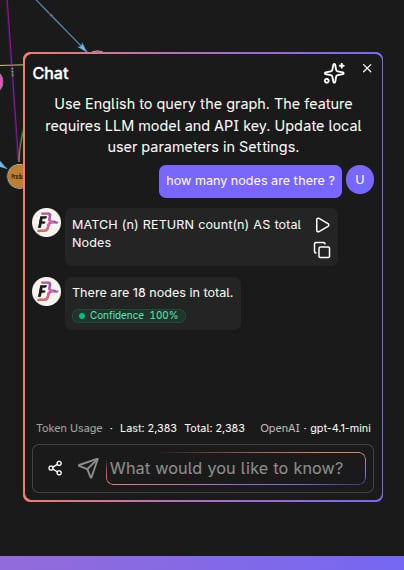
Prerequisites
Chat requires configuring an LLM connection and a model. These are set in Settings → Browser Settings → Chat. You can choose one of two connection types:
The LLM connection indicator in settings shows what Chat will use. It changes as you switch between cloud and local options, change the selected key/provider, or select a different model.
For local models:
- Ollama defaults to
http://localhost:11434. - LM Studio defaults to
http://localhost:1234/v1. - If no models are listed, check that the local server is running and the endpoint is correct.
Opening the panel
On the Graphs page (/graph), click CHAT in the left sidebar.
When Chat is opened, element selection is cleared (the side panel is dedicated to chat interactions).
Message retention
The number of saved interactions is configurable in settings (the UI enforces a bounded range).Frequently Asked Questions
What do I need to configure before using Chat?
What do I need to configure before using Chat?
You need to configure an LLM connection and select a model in Settings → Browser Settings → Chat. You can use either a hosted provider with a saved API key, or a local LLM through Ollama or LM Studio.
How do I open the Chat panel?
How do I open the Chat panel?
On the Graphs page (
/graph), click the CHAT toggle in the left sidebar. Note that opening Chat clears any element selection.Can I control how many chat messages are saved?
Can I control how many chat messages are saved?
Yes. The number of saved interactions is configurable in Settings → Browser Settings → Chat. The UI enforces a bounded range.
Does Chat execute queries on the graph?
Does Chat execute queries on the graph?
Yes. Chat translates your natural language input into Cypher queries and executes them against the currently selected graph.
Can I use Chat without a cloud API key?
Can I use Chat without a cloud API key?
Yes, if you use Local LLM with a running Ollama or LM Studio server and select one of its available models.