> ## Documentation Index
> Fetch the complete documentation index at: https://new.docs.falkordb.com/llms.txt
> Use this file to discover all available pages before exploring further.
# Graph Toolbar & Element Actions
> In-canvas search, selection helpers, add node/edge flows, delete, and related controls.
The Graph toolbar is an overlay shown on the Graph canvas. It’s focused on searching, selecting, and modifying graph elements.
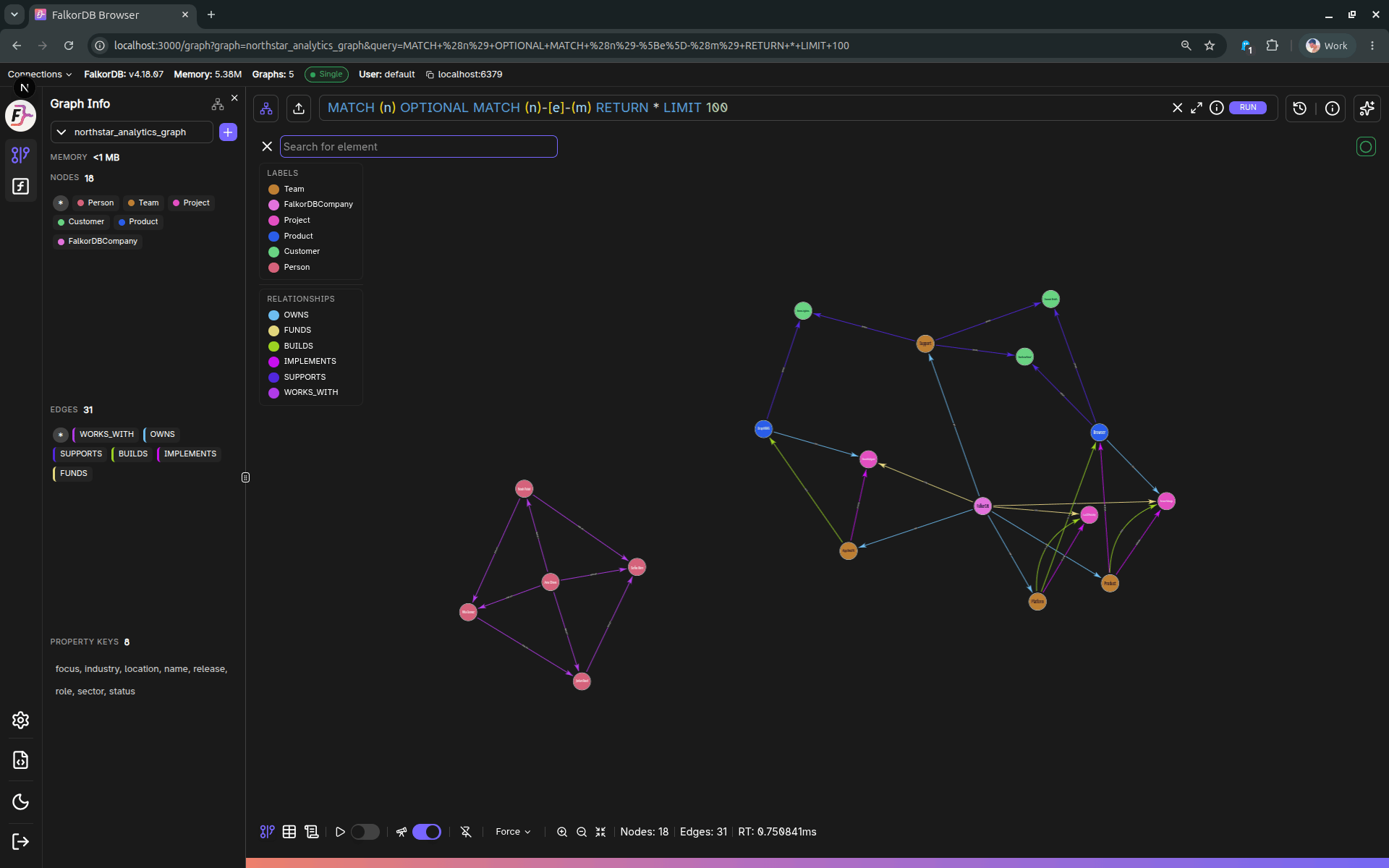 ## In-canvas element search
The search input supports matching against:
* Node/edge **property values** (string prefix match)
* **IDs**
* **Relationship type** (edges)
* **Labels** (nodes)
Keyboard behavior:
* `Enter`: jump/select the highlighted suggestion
* `Arrow Up/Down`: move through suggestions
* `Esc`: clear search
Selecting a suggestion zooms/fits the canvas around the matched element.
## Element actions (create / delete)
When the user is not Read-Only, the toolbar supports:
* **Add node**
* **Add edge** (typically only enabled when two nodes are selected)
* **Delete** selected element(s)
These actions open additional UI (e.g., the Add panel) and/or call graph API routes.
## Layout & limit warnings
The toolbar can display warnings when:
* The current query hit a result limit
* The configured limit changed relative to the last query
## Frequently Asked Questions
Type in the search input to match against node/edge **property values** (prefix match), **IDs**, **relationship types**, or **labels**. Select a suggestion to zoom the canvas to that element.
Click the **Add node** button in the toolbar (available to non–Read-Only users). This opens the Add panel where you can specify labels and properties for the new node.
Select **two nodes** on the canvas, then click **Add edge** in the toolbar. This is typically only enabled when exactly two nodes are selected.
It means your query returned more results than the configured limit allows. Increase the **result limit** in Settings → Browser Settings → Query execution to see more results.
## In-canvas element search
The search input supports matching against:
* Node/edge **property values** (string prefix match)
* **IDs**
* **Relationship type** (edges)
* **Labels** (nodes)
Keyboard behavior:
* `Enter`: jump/select the highlighted suggestion
* `Arrow Up/Down`: move through suggestions
* `Esc`: clear search
Selecting a suggestion zooms/fits the canvas around the matched element.
## Element actions (create / delete)
When the user is not Read-Only, the toolbar supports:
* **Add node**
* **Add edge** (typically only enabled when two nodes are selected)
* **Delete** selected element(s)
These actions open additional UI (e.g., the Add panel) and/or call graph API routes.
## Layout & limit warnings
The toolbar can display warnings when:
* The current query hit a result limit
* The configured limit changed relative to the last query
## Frequently Asked Questions
Type in the search input to match against node/edge **property values** (prefix match), **IDs**, **relationship types**, or **labels**. Select a suggestion to zoom the canvas to that element.
Click the **Add node** button in the toolbar (available to non–Read-Only users). This opens the Add panel where you can specify labels and properties for the new node.
Select **two nodes** on the canvas, then click **Add edge** in the toolbar. This is typically only enabled when exactly two nodes are selected.
It means your query returned more results than the configured limit allows. Increase the **result limit** in Settings → Browser Settings → Query execution to see more results.