> ## Documentation Index
> Fetch the complete documentation index at: https://new.docs.falkordb.com/llms.txt
> Use this file to discover all available pages before exploring further.
# Settings Page
> Browser settings, tutorial replay, personal access tokens, and admin sections (DB configurations, users).
The Settings page (`/settings`) is where you configure Browser behavior and manage security/admin features.
 ## Tabs / sections
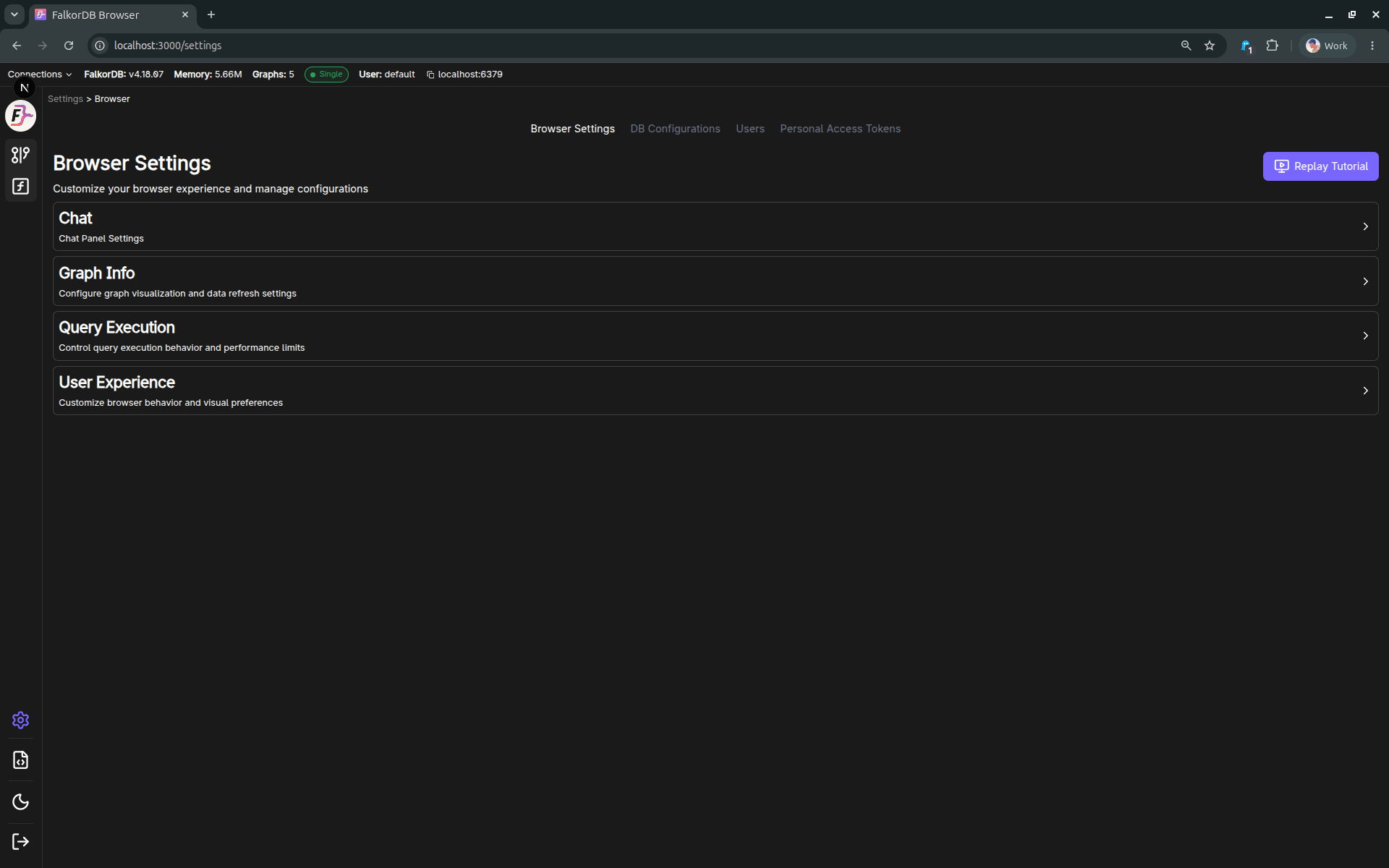
The Settings page is organized into these sections:
* **Browser Settings** (all users)
* **Personal Access Tokens** (all users)
* **DB Configurations** (Admin only; requires online connection)
* **Users** (Admin only; requires online connection)
If you navigate away from **Browser Settings** while there are unsaved changes, the UI prompts you to **Save** or **Discard** changes.
## Browser Settings
The Browser Settings panel is a page that can be scrolled, with grouped sections (collapsed/expanded in the UI). Common settings include:
* **Query execution**
* Query timeout
* Result limits
* Default query behavior (run a default query when selecting a graph)
* **User experience**
* Content persistence (restores the last used graph + query from localStorage)
* Node caption priority keys (controls how node labels/captions are picked)
* Property-key display options (e.g. prefix behavior)
* **Graph Info**
* Refresh interval (how often graph info refreshes)
* **Chat**
* LLM connection source: cloud/API key or local LLM
* Saved cloud API keys
* Local provider: Ollama or LM Studio
* Local endpoint URL
* Model selection
* Current LLM connection indicator
* How many interactions to store locally
## Chat and LLM connection
Use **Settings → Browser Settings → Chat** to choose what powers the Chat panel.
You can use either:
| Option | What it means | What you need |
| :---------------- | :------------------------------------------------------------------------------------------------- | :------------------------------------------------------------------------------------------------- |
| **Cloud/API key** | Chat uses a hosted LLM provider such as OpenAI, Anthropic, Gemini, Groq, Cohere, xAI, or DeepSeek. | Add a provider API key, select the saved key, then select a model. |
| **Local LLM** | Chat uses a model running on your own machine. | Start Ollama or LM Studio locally, choose the provider, confirm the endpoint, then select a model. |
The **LLM connection** area shows what Chat is currently configured to use. The status badge shows:
* **Saved** when the displayed source, key/provider, endpoint, and model are already saved.
* **Pending** when you changed something and still need to click **Save Settings**.
For local LLMs, the default endpoints are:
| Provider | Default endpoint |
| :------------ | :------------------------- |
| **Ollama** | `http://localhost:11434` |
| **LM Studio** | `http://localhost:1234/v1` |
If models do not appear, make sure the local server is running and the endpoint is correct.
### Replay Tutorial
Browser Settings includes a **Replay Tutorial** action, which re-runs the guided tour overlay.
## Personal Access Tokens
The Tokens section provides a UI to:
* Create tokens (often with optional expiry)
* View/revoke existing tokens
## Admin-only sections
### DB Configurations (Admin)
Allows viewing/updating database configuration values via the server API.
### Users (Admin)
Allows:
* Viewing users
* Changing roles
* Adding/removing users
## Keyboard shortcut
* `Esc` navigates back (with a save/discard prompt if there are unsaved Browser Settings changes).
## Frequently Asked Questions
Go to **Settings → Browser Settings → Chat**. Choose **Cloud/API key** to use a hosted provider key, or **Local LLM** to use Ollama or LM Studio. Then select the key/provider, endpoint if local, and model, and click **Save Settings**.
Admin users can access **DB Configurations** (view/update server config) and **Users** management (add/remove users, change roles). These sections require an online connection.
Go to **Settings → Personal Access Tokens** and click create. You can optionally set an expiry date. Tokens can be revoked from the same section.
The UI prompts you to **Save** or **Discard** your unsaved Browser Settings changes before navigating away.
Go to **Settings → Browser Settings** and click the **Replay Tutorial** action to re-run the guided tour overlay.
## Tabs / sections
The Settings page is organized into these sections:
* **Browser Settings** (all users)
* **Personal Access Tokens** (all users)
* **DB Configurations** (Admin only; requires online connection)
* **Users** (Admin only; requires online connection)
If you navigate away from **Browser Settings** while there are unsaved changes, the UI prompts you to **Save** or **Discard** changes.
## Browser Settings
The Browser Settings panel is a page that can be scrolled, with grouped sections (collapsed/expanded in the UI). Common settings include:
* **Query execution**
* Query timeout
* Result limits
* Default query behavior (run a default query when selecting a graph)
* **User experience**
* Content persistence (restores the last used graph + query from localStorage)
* Node caption priority keys (controls how node labels/captions are picked)
* Property-key display options (e.g. prefix behavior)
* **Graph Info**
* Refresh interval (how often graph info refreshes)
* **Chat**
* LLM connection source: cloud/API key or local LLM
* Saved cloud API keys
* Local provider: Ollama or LM Studio
* Local endpoint URL
* Model selection
* Current LLM connection indicator
* How many interactions to store locally
## Chat and LLM connection
Use **Settings → Browser Settings → Chat** to choose what powers the Chat panel.
You can use either:
| Option | What it means | What you need |
| :---------------- | :------------------------------------------------------------------------------------------------- | :------------------------------------------------------------------------------------------------- |
| **Cloud/API key** | Chat uses a hosted LLM provider such as OpenAI, Anthropic, Gemini, Groq, Cohere, xAI, or DeepSeek. | Add a provider API key, select the saved key, then select a model. |
| **Local LLM** | Chat uses a model running on your own machine. | Start Ollama or LM Studio locally, choose the provider, confirm the endpoint, then select a model. |
The **LLM connection** area shows what Chat is currently configured to use. The status badge shows:
* **Saved** when the displayed source, key/provider, endpoint, and model are already saved.
* **Pending** when you changed something and still need to click **Save Settings**.
For local LLMs, the default endpoints are:
| Provider | Default endpoint |
| :------------ | :------------------------- |
| **Ollama** | `http://localhost:11434` |
| **LM Studio** | `http://localhost:1234/v1` |
If models do not appear, make sure the local server is running and the endpoint is correct.
### Replay Tutorial
Browser Settings includes a **Replay Tutorial** action, which re-runs the guided tour overlay.
## Personal Access Tokens
The Tokens section provides a UI to:
* Create tokens (often with optional expiry)
* View/revoke existing tokens
## Admin-only sections
### DB Configurations (Admin)
Allows viewing/updating database configuration values via the server API.
### Users (Admin)
Allows:
* Viewing users
* Changing roles
* Adding/removing users
## Keyboard shortcut
* `Esc` navigates back (with a save/discard prompt if there are unsaved Browser Settings changes).
## Frequently Asked Questions
Go to **Settings → Browser Settings → Chat**. Choose **Cloud/API key** to use a hosted provider key, or **Local LLM** to use Ollama or LM Studio. Then select the key/provider, endpoint if local, and model, and click **Save Settings**.
Admin users can access **DB Configurations** (view/update server config) and **Users** management (add/remove users, change roles). These sections require an online connection.
Go to **Settings → Personal Access Tokens** and click create. You can optionally set an expiry date. Tokens can be revoked from the same section.
The UI prompts you to **Save** or **Discard** your unsaved Browser Settings changes before navigating away.
Go to **Settings → Browser Settings** and click the **Replay Tutorial** action to re-run the guided tour overlay.