> ## Documentation Index
> Fetch the complete documentation index at: https://new.docs.falkordb.com/llms.txt
> Use this file to discover all available pages before exploring further.
# Navigation & Header
> Left sidebar navigation (Graphs/Settings), graph-side panel toggles, help menu, theme toggle, logout.
FalkorDB Browser uses a left sidebar (header) for navigation and global actions.
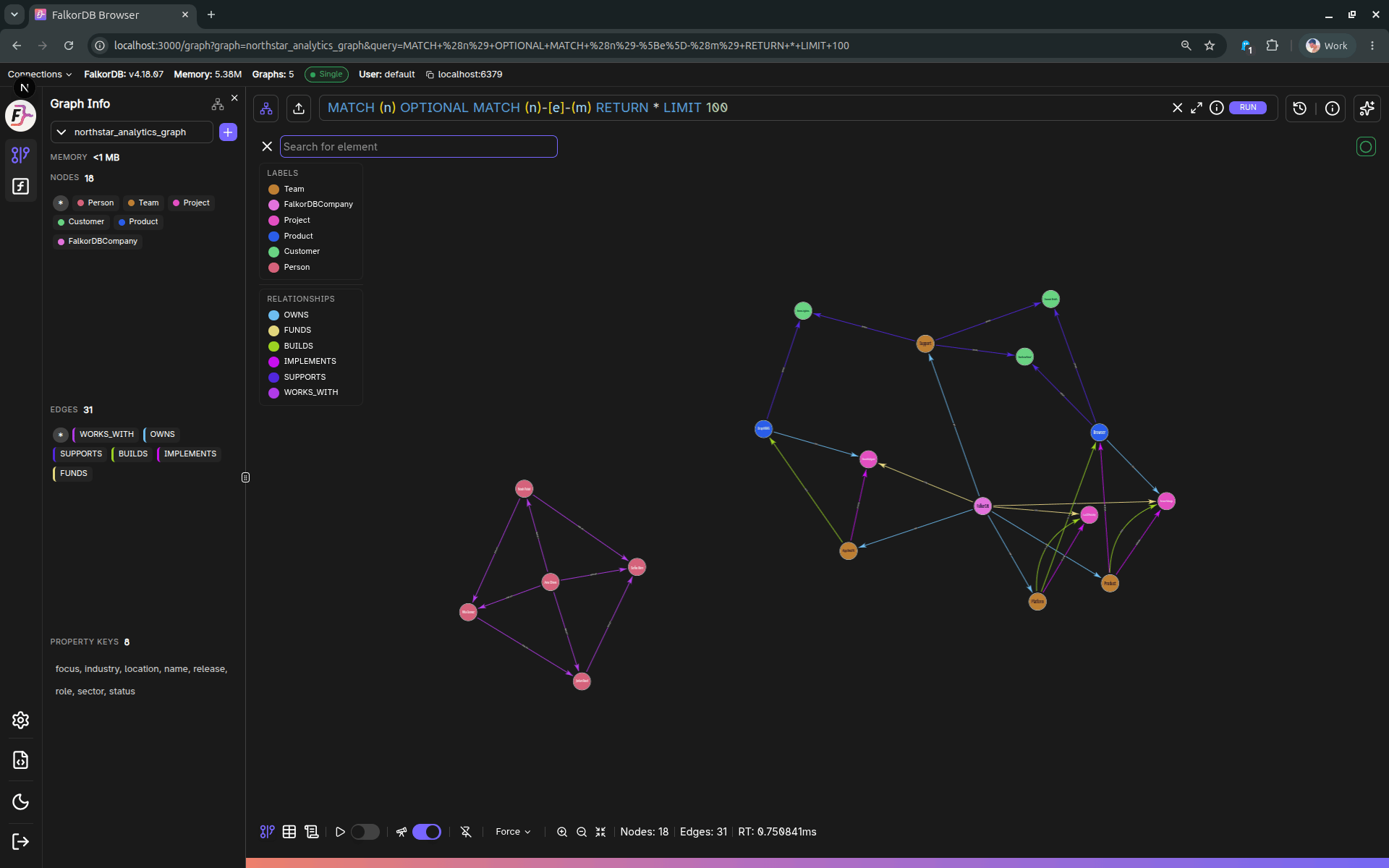 ## Main navigation buttons
Located in the sidebar under the user name/version block:
* **SETTINGS** → opens `/settings`
* **GRAPHS** → opens `/graph`
## Contextual graph controls (Graphs page)
When you are on **Graphs** (`/graph`) and a graph is selected:
* **Graph Info toggle** (database icon) opens/closes the Graph Info panel.
* **CHAT** toggle opens/closes the Chat side panel (requires an LLM connection and model configured in Settings).
## Create graph
For non–Read-Only users, the sidebar can expose **Create Graph** (depending on the current route).
## Help menu
The “Help” button (file/code icon) opens a menu with:
* Documentation (external)
* API Documentation (`/docs`)
* Support (Discord)
* About drawer
## Theme toggle
The theme toggle cycles through:
* Dark → Light → System → Dark
## Connection indicators
The sidebar may show connection “mode” badges (e.g. Single/Sentinel/Cluster) and an **Offline** indicator when the backend is unreachable.
## Logout
The logout button signs out and redirects to `/login`.
## Frequently Asked Questions
Use the **left sidebar** navigation buttons. Click **GRAPHS** to open `/graph` or **SETTINGS** to open `/settings`.
Click the **theme toggle** button in the sidebar. It cycles through Dark → Light → System → Dark.
The **Offline** badge appears in the sidebar when the Browser cannot reach the backend server. Check your network connection and ensure the FalkorDB server is running.
On the Graphs page, click the **CHAT** toggle in the left sidebar. Note: Chat requires an LLM connection and model to be configured in Settings first. You can use either a cloud API key or a local Ollama/LM Studio connection.
## Main navigation buttons
Located in the sidebar under the user name/version block:
* **SETTINGS** → opens `/settings`
* **GRAPHS** → opens `/graph`
## Contextual graph controls (Graphs page)
When you are on **Graphs** (`/graph`) and a graph is selected:
* **Graph Info toggle** (database icon) opens/closes the Graph Info panel.
* **CHAT** toggle opens/closes the Chat side panel (requires an LLM connection and model configured in Settings).
## Create graph
For non–Read-Only users, the sidebar can expose **Create Graph** (depending on the current route).
## Help menu
The “Help” button (file/code icon) opens a menu with:
* Documentation (external)
* API Documentation (`/docs`)
* Support (Discord)
* About drawer
## Theme toggle
The theme toggle cycles through:
* Dark → Light → System → Dark
## Connection indicators
The sidebar may show connection “mode” badges (e.g. Single/Sentinel/Cluster) and an **Offline** indicator when the backend is unreachable.
## Logout
The logout button signs out and redirects to `/login`.
## Frequently Asked Questions
Use the **left sidebar** navigation buttons. Click **GRAPHS** to open `/graph` or **SETTINGS** to open `/settings`.
Click the **theme toggle** button in the sidebar. It cycles through Dark → Light → System → Dark.
The **Offline** badge appears in the sidebar when the Browser cannot reach the backend server. Check your network connection and ensure the FalkorDB server is running.
On the Graphs page, click the **CHAT** toggle in the left sidebar. Note: Chat requires an LLM connection and model to be configured in Settings first. You can use either a cloud API key or a local Ollama/LM Studio connection.