> ## Documentation Index
> Fetch the complete documentation index at: https://new.docs.falkordb.com/llms.txt
> Use this file to discover all available pages before exploring further.
# Chat Panel
> Natural-language to query workflow, LLM connection setup, and persistence limits.
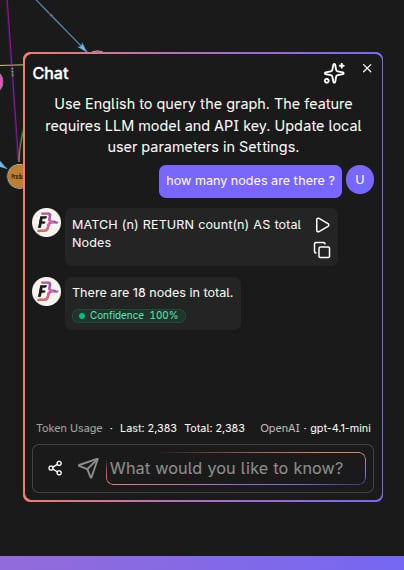
The Chat panel lets you use English (natural language) to query the graph.
 ## Prerequisites
Chat requires configuring an LLM connection and a model.
These are set in **Settings → Browser Settings → Chat**.
You can choose one of two connection types:
| Connection type | Use this when | Setup |
| :---------------- | :--------------------------------------- | :---------------------------------------------------------------------------------------------- |
| **Cloud/API key** | You want to use a hosted LLM provider. | Add a provider API key, select the saved key, and choose a model. |
| **Local LLM** | You want to use a model running locally. | Start Ollama or LM Studio, select the local provider, confirm the endpoint, and choose a model. |
The LLM connection indicator in settings shows what Chat will use. It changes as you switch between cloud and local options, change the selected key/provider, or select a different model.
For local models:
* **Ollama** defaults to `http://localhost:11434`.
* **LM Studio** defaults to `http://localhost:1234/v1`.
* If no models are listed, check that the local server is running and the endpoint is correct.
## Opening the panel
On the Graphs page (`/graph`), click **CHAT** in the left sidebar.
When Chat is opened, element selection is cleared (the side panel is dedicated to chat interactions).
## Message retention
The number of saved interactions is configurable in settings (the UI enforces a bounded range).
## Frequently Asked Questions
You need to configure an **LLM connection** and select a **model** in Settings → Browser Settings → Chat. You can use either a hosted provider with a saved API key, or a local LLM through Ollama or LM Studio.
On the Graphs page (`/graph`), click the **CHAT** toggle in the left sidebar. Note that opening Chat clears any element selection.
Yes. The number of saved interactions is configurable in **Settings → Browser Settings → Chat**. The UI enforces a bounded range.
Yes. Chat translates your **natural language** input into Cypher queries and executes them against the currently selected graph.
Yes, if you use **Local LLM** with a running Ollama or LM Studio server and select one of its available models.
## Prerequisites
Chat requires configuring an LLM connection and a model.
These are set in **Settings → Browser Settings → Chat**.
You can choose one of two connection types:
| Connection type | Use this when | Setup |
| :---------------- | :--------------------------------------- | :---------------------------------------------------------------------------------------------- |
| **Cloud/API key** | You want to use a hosted LLM provider. | Add a provider API key, select the saved key, and choose a model. |
| **Local LLM** | You want to use a model running locally. | Start Ollama or LM Studio, select the local provider, confirm the endpoint, and choose a model. |
The LLM connection indicator in settings shows what Chat will use. It changes as you switch between cloud and local options, change the selected key/provider, or select a different model.
For local models:
* **Ollama** defaults to `http://localhost:11434`.
* **LM Studio** defaults to `http://localhost:1234/v1`.
* If no models are listed, check that the local server is running and the endpoint is correct.
## Opening the panel
On the Graphs page (`/graph`), click **CHAT** in the left sidebar.
When Chat is opened, element selection is cleared (the side panel is dedicated to chat interactions).
## Message retention
The number of saved interactions is configurable in settings (the UI enforces a bounded range).
## Frequently Asked Questions
You need to configure an **LLM connection** and select a **model** in Settings → Browser Settings → Chat. You can use either a hosted provider with a saved API key, or a local LLM through Ollama or LM Studio.
On the Graphs page (`/graph`), click the **CHAT** toggle in the left sidebar. Note that opening Chat clears any element selection.
Yes. The number of saved interactions is configurable in **Settings → Browser Settings → Chat**. The UI enforces a bounded range.
Yes. Chat translates your **natural language** input into Cypher queries and executes them against the currently selected graph.
Yes, if you use **Local LLM** with a running Ollama or LM Studio server and select one of its available models.